
CERES user guide
Explore the dataset viewer
The dataset viewer opens a CERES dataset directly from Hugging Face. It keeps the outward video, recorded hands, task timeline and diagnostic signals on one playback time so that a capture can be reviewed without downloading it first.
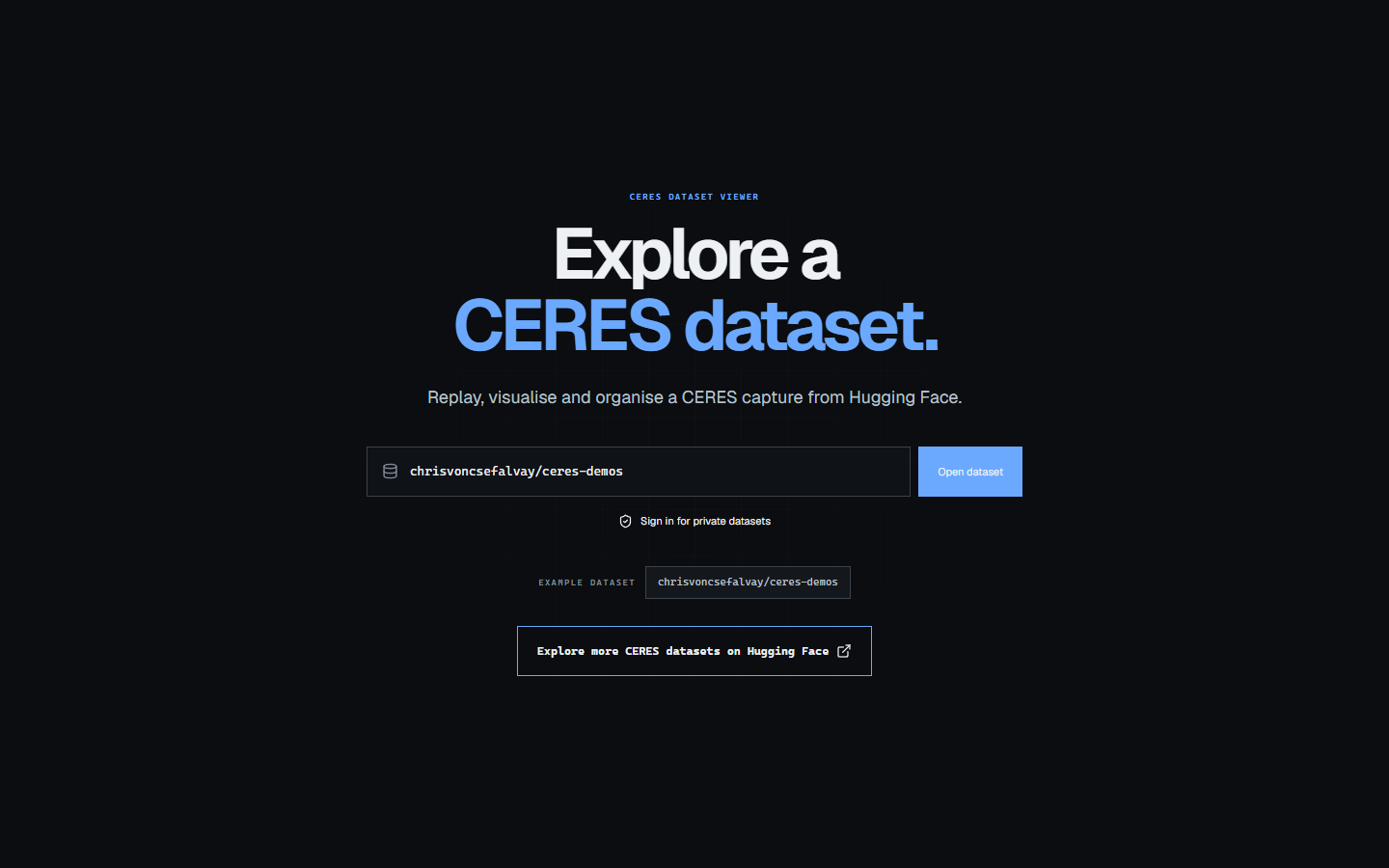
Open the CERES dataset viewer, or choose Launch > Viewer in CERES. Public datasets open without an account. Sign in only when you need an existing permission for a private or gated dataset, a writable copy target or Edit mode.
Open a repository
- Enter the Hugging Face dataset identifier as
owner/name. Do not paste a file path or individual episode URL. - Select Open dataset. To explore the interface first, open the public
chrisvoncsefalvay/ceres-demosexample. - Wait for the repository index to appear. The viewer pins the repository revision, discovers the episode shards that exist at that commit and then loads the selected episode's telemetry and media.
The repository index is authoritative for what the viewer can open. Its episode count can differ from cumulative statistics in an older dataset card because the index reads the actual shards/episode-* entries at the pinned revision.
Use Change to return to the repository field. Public access uses unsigned Hugging Face requests. A private or gated repository requires Sign in and the same read permission that you would need on Hugging Face.
Choose an episode
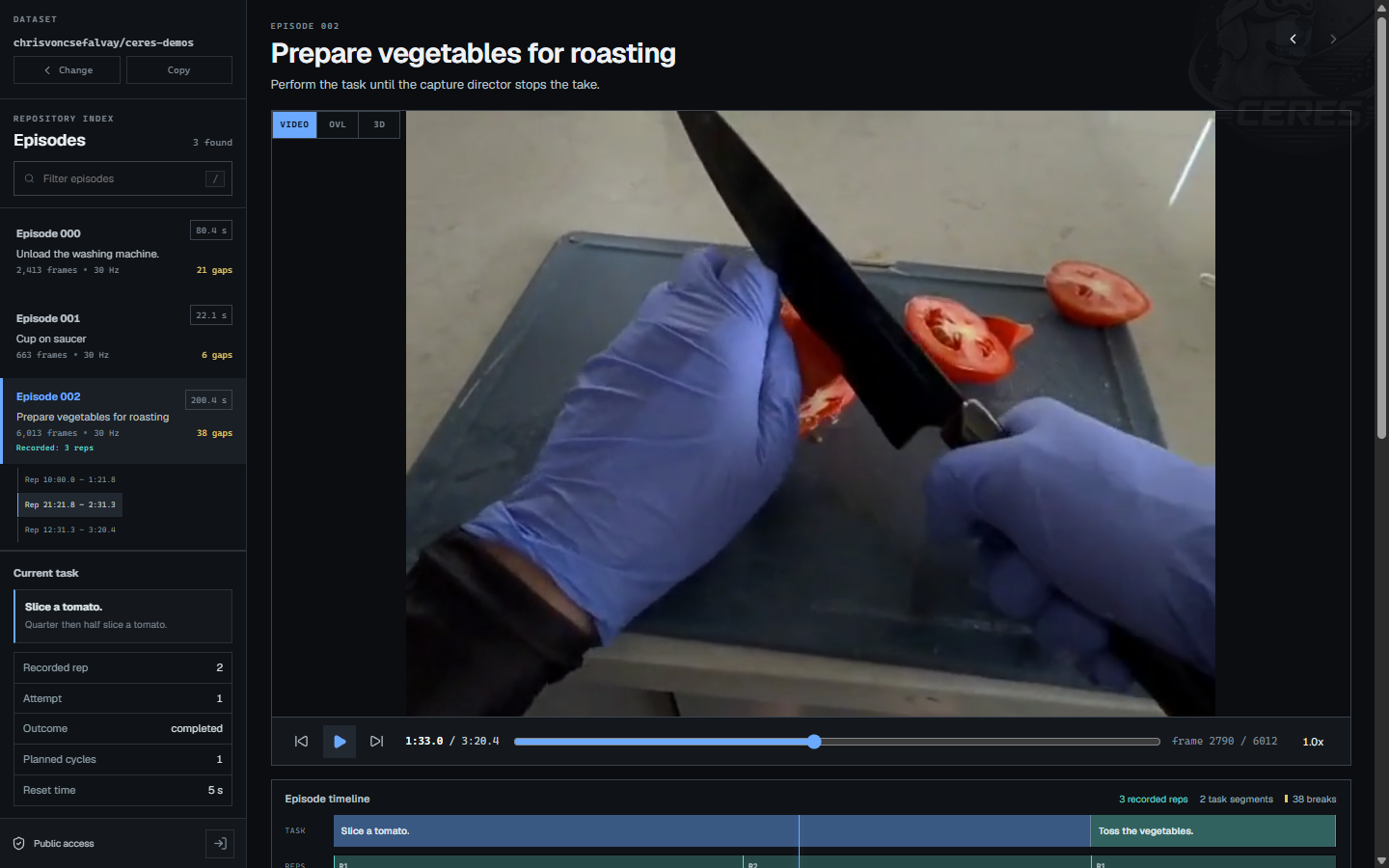
The left index shows each episode's title, duration, frame count, frame rate and explicit source-gap count. When task provenance is available, expanding an episode also shows its recorded repetitions and their time windows. Select a repetition to seek directly to it.
Use the filter to find an episode by title or number. The previous and next controls above the replay move through the current filtered index. The task, attempt, outcome, capture facts and pinned revision shown in the sidebar update with the current frame.
Control playback
Use Play or Pause, the previous-frame and next-frame controls, the playback-position slider and the speed control beneath the viewport. The time display and frame counter identify the exact current sample.
The keyboard controls work when a text field or dialog is not active:
- Press
Spaceto play or pause. - Press
Left ArroworRight Arrowto move by one frame. - Hold
Shiftwith an arrow key to jump five seconds. - Press
/to focus the episode filter.
The repository, episode and playback time are preserved in the URL. Copy that URL to share the same review position. The selected VIDEO, OVL or 3D view is not preserved, so name the required view when it matters.
Compare video, overlay and spatial replay
The three standard view modes stay aligned with the playback controls and diagnostics:
- VIDEO shows the recorded outward camera stream.
- OVL draws the recorded hand pose over the corresponding video frame.
- 3D places fitted MANO hands, the tracked Meta Quest 3 model and the recorded video in the camera frustum.
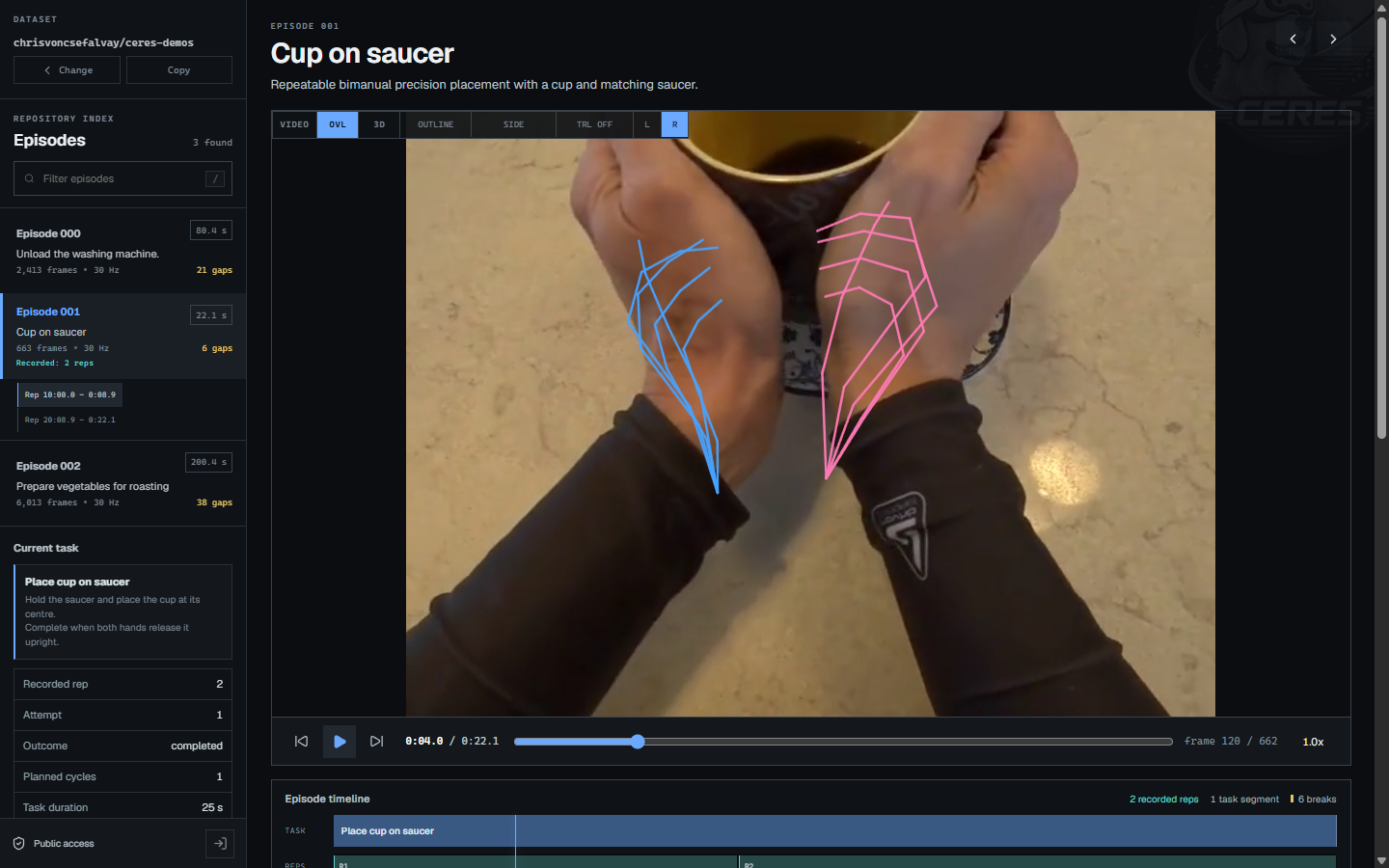
In OVL and 3D, the compact controls cycle through the same hand presentation settings:
- Render mode cycles through
OFF,OUTLINE,KEYPOINTSandMESH. - Shading cycles through
SIDE,VELOCITY,NORMALandMOTION. - Trail mode cycles through
OFF,COGfor the centre-of-gravity trail andRIBBONfor hand motion ribbons. - When ribbon mode is active, the ribbon colour cycles through
NORMAL,SIDEandVELOCITY. LandRoverride the camera side for a legacy export whose recorded camera selection is unavailable or incorrect.CAM LOCKin3Dswitches between world-absolute and camera-locked inspection.
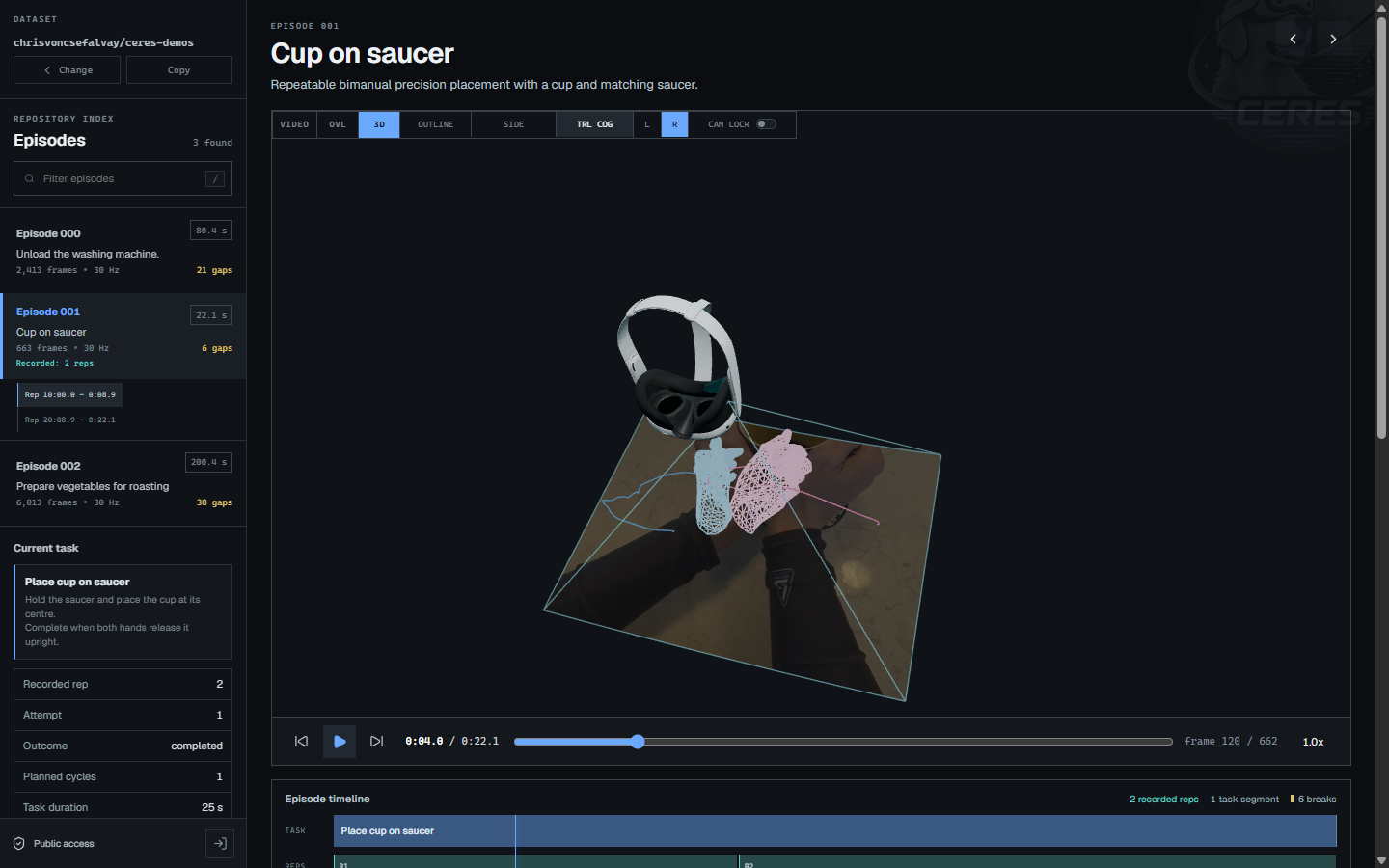
These controls change only the presentation. They do not alter the recorded pixels, hand samples or capture metadata.
Read the timeline and diagnostic signals
The episode timeline contains separate Task, Reps and Gaps tracks. Select any track position to seek. Task blocks show the active labels, repetition blocks show the recorded rep and attempt where available and gap marks identify missing source frames. A retry may therefore appear with an attempt label such as R1 A2; do not treat every attempt as a new planned repetition.
The vertical playhead is shared with every chart. Use the arrows around the hand-signal title to move through pinch distance, mean velocity, openness, orientation, wrist flexion or extension and dorsal versus palmar rotation. The remaining panels show head position in XYZ, left and right hand position in XYZ and pointwise motion entropy.
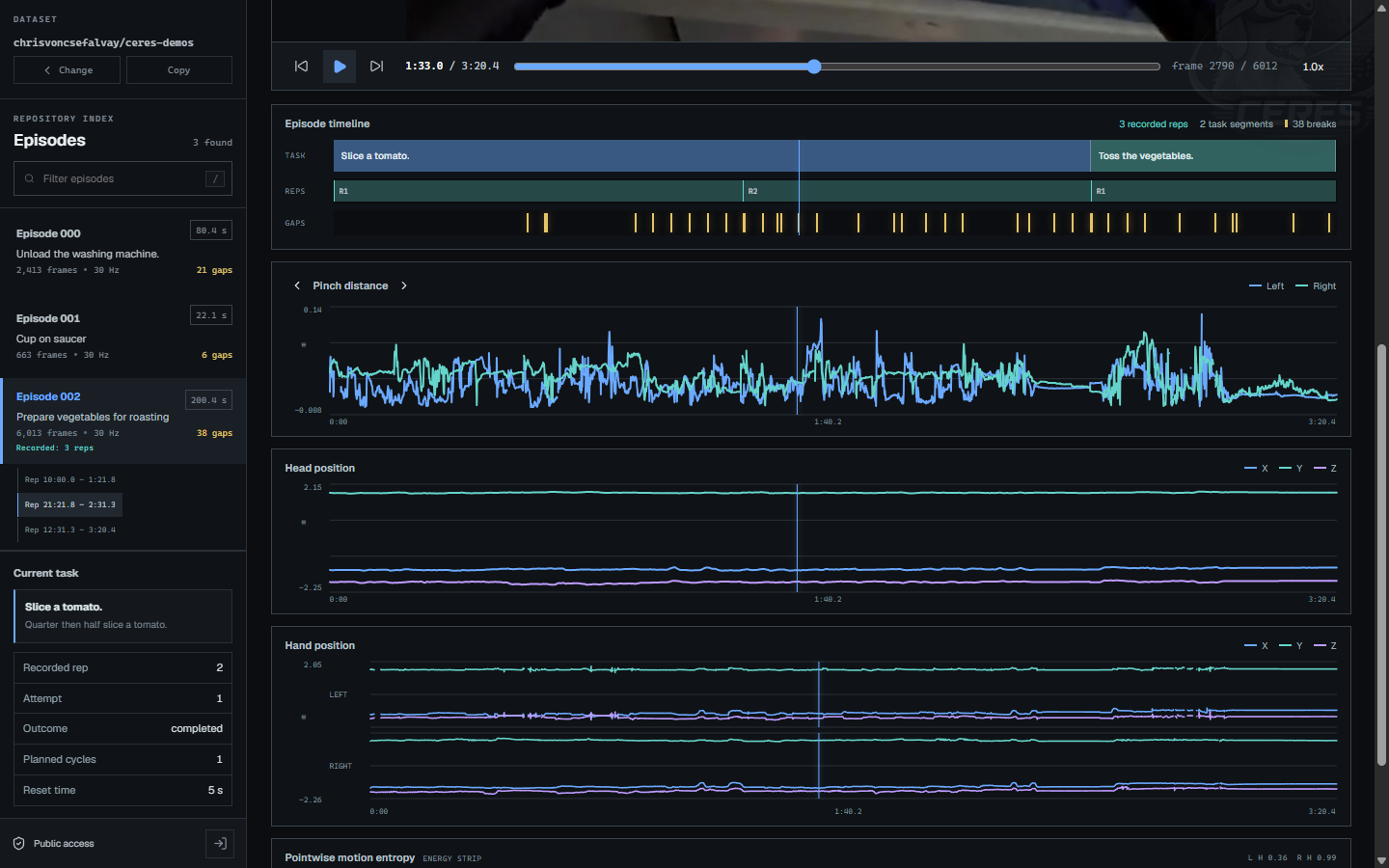
The motion-entropy strip uses one row per tracked hand joint. Its colour shows that joint's normalised contribution to hand motion, not tracking confidence. Read explicit gaps from the timeline rather than inferring continuity from a smooth chart line.
Copy recorded repetitions
Recorded repetitions can be copied from both Copy and Edit modes. When the current session is not entitled to edit the source repository, the dataset action opens standalone Copy mode. Open Copy or Edit, tick one or more recorded repetitions and then choose Copy selected repetitions. If you are signed out, the viewer asks you to sign in only when it needs a writable target.
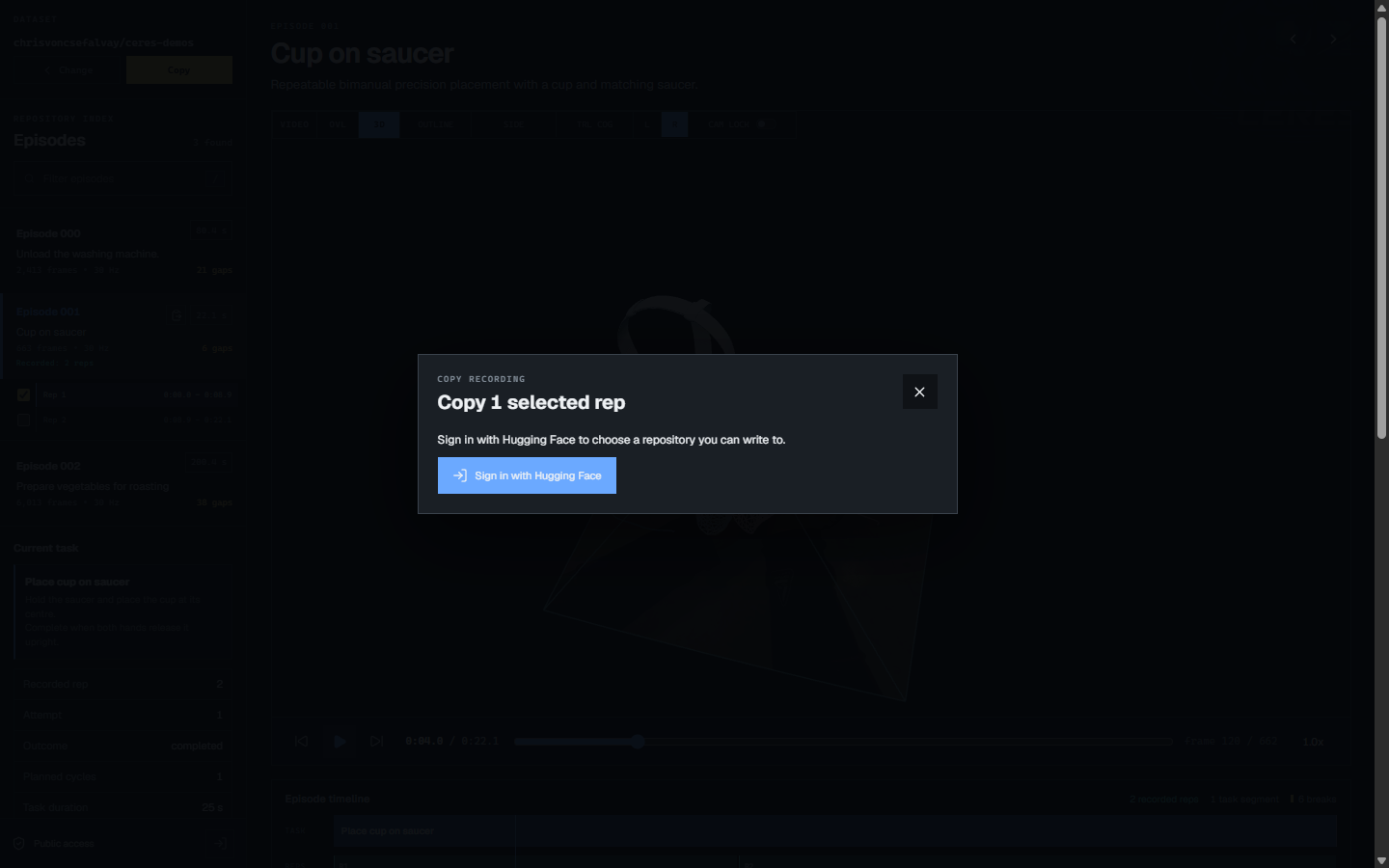
Choose a CERES repository that your Hugging Face account can write to and review the copy preview before confirming it. Whether it starts in Copy or Edit mode, the workflow writes the selected frame-aligned repetitions to the target repository in a new Hub commit. It does not alter the source. Copying from a private source to a public target requires an explicit disclosure acknowledgement.
Edit a repository you own
Edit is shown instead of standalone Copy when the signed-in account owns the repository, directly or through an authorised organisation, and has current write access. Edit mode can change:
- Episode titles and instructions.
- Task labels and task instructions.
- Repetition numbers.
- Frame-aligned task and repetition boundaries.
- Splits and joins between adjacent segments.
Choose Save to create one atomic Hugging Face commit against the pinned source revision. Choose Discard to leave the repository unchanged. If the repository revision has moved, reopen it before saving rather than editing against stale data.
Edit mode includes the same repetition selection and copy workflow. A copy creates a commit in the chosen target repository and does not save pending edits to the source.
Browsing, playback and visual controls remain read-only. Copy writes only after a target and preview are confirmed. Edit writes only when Save succeeds.
Access and session handling
The viewer honours existing Hugging Face repository permissions. Public data is fetched without an account. Private and gated data uses the signed-in account's read permission, while Copy and Edit require write permission for the repository they change.
The short-lived Hugging Face token remains in the viewer's server-side session. The browser receives an opaque HttpOnly session cookie rather than the token itself. Do not place credentials in a repository field or shared viewer URL.
Read Data description and output format for the files and fields behind these views, review and export for the capture director workflow that produces them or troubleshooting when a repository does not open.