
CERES user guide
Read the headset HUD
The headset HUD keeps the active task and the controls that are valid at that moment in view. It does not ask the demonstrator to manage the capture director's workspace.
Read the task and controls
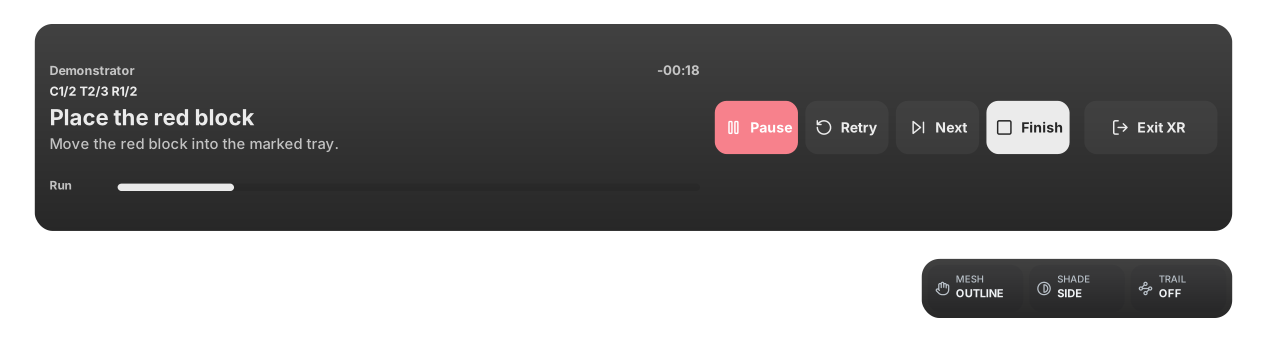
The Horizon task strip identifies the capture mode, current task timing, cycle, task, repetition, cue and instructions. Check that the cue matches the physical task before setting readiness.
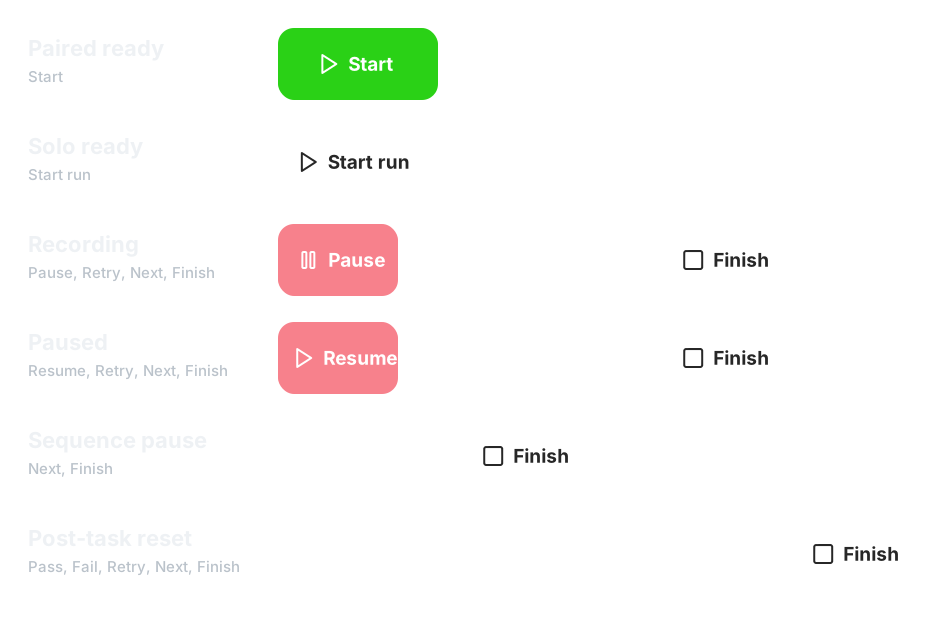
The action row changes with the run state. These are the exact action sets shown before a paired or Solo run, during recording, while the recorder is paused, during a configured task or cycle pause and during reset:
Read the recording indicators
The camera frame shows the authoritative REC marker at the upper left. The upload and microphone indicators appear at the upper right.

The upload arrow is grey during paired capture and blue while the Solo HUD is reporting an upload. A green microphone waveform together with REC means microphone audio is being recorded. A crossed grey waveform means audio recording is off and a crossed red waveform means the requested audio source is unavailable.
The REC marker is authoritative:
- REC means CERES is recording the take.
- If REC disappears and Resume is available, recording is paused. Stop the task, select Resume only when it is safe and wait for REC before continuing.
- A waiting, countdown or arming state means the take has not started, even if somebody has given a verbal cue.
Read the progress reticle
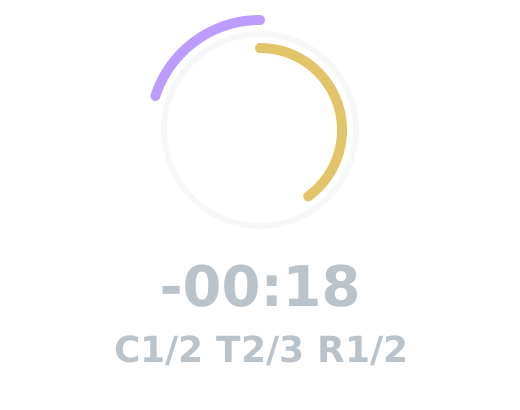
The centre reticle shows task progress clockwise on the inner yellow ring and whole-run progress anticlockwise on the outer purple ring. Timing and task state appear below the rings.
The task strip also carries a whole-run progress bar. A timed task counts down, an open task shows elapsed time and the last ten per cent of a timed task changes to red. A configured pause shows its remaining time in yellow. The warning tape presents the highest-priority tracking, speed, voice or recorder message.
Set readiness
Paired capture and Solo start differently:
- Paired capture (Duet): Select Start to set your readiness. The task strip changes from READY? to READY while one person is waiting and to SYNC LOCK once both are ready.
- Solo: Choose the start task in Solo before opening XR. Once local readiness checks pass, select Start run in the HUD. The HUD shows the countdown followed by ARMING.
In either mode, begin the important movement only after REC appears.
Leaving XR pauses the capture rather than deleting it. Return to the setup surface, confirm the pending run and select Join XR. Once the HUD returns and the scene is ready, select Resume inside XR.
Use task controls
After REC appears, the HUD shows Finish until finalisation starts. During an active task it can also show Pause or Resume, Retry and Next. During a post-task reset it can show Pass and Fail:
- Pass and Fail are optional annotations. They do not hold the timer or block the next task.
- Retry replaces the unsuitable attempt for the current task.
- Next ends an open task or advances early when the current task or pause permits it.
Select Finish when the intended run is complete. It is unavailable while the recorder is still arming or already stopping. CERES saves terminal media and validates the recorder before it accepts the episode and marks the run complete. The capture director's Stop run action, voice stop and failure handling remain safety interruptions.
Use voice mode
When voice mode is ready, say one of these run commands:
startbegins the normal readiness and start sequence.pausepauses an active recording.finishordonesuccessfully finishes the run after recording has started.stopimmediately interrupts the run without marking it successfully complete.nextadvances when the current task, reset or pause permits it.redoretries the current take.passmarks the take as passed when review controls are available.failmarks the take as failed when review controls are available.
Voice mode can also change the hand display:
mesh,outlineorpointsselects the hand rendering mode.normals,velocity,speedormotionselects the hand shading.trail onortrail offcontrols the centre-of-gravity trail.
Voice readiness or failure appears briefly on the warning tape when XR opens or recognition state changes. A valid command briefly gives the matching enabled run or appearance control a yellow glow.
Recognition runs locally in the browser. It requires microphone permission but does not require microphone audio to be saved with the recording. The first use downloads the local model and later runs use the browser cache.
Respond to hand warnings
LEFT HAND TOO FAST, RIGHT HAND TOO FAST or HANDS TOO FAST asks you to reduce speed when doing so does not change the task. If an outline freezes or disappears, bring the hand in front of the headset, separate the hands and hold still briefly. Tell the capture director when tracking was missing during the important part of the action.
Read Perform the task in Quest for the complete demonstrator workflow and Use the capture director interface for the corresponding monitor controls.